Gaming Laptop · X-Plane 12
ASUS TUF Gaming F16 (2025) Gaming Laptop, 16" FHD+ 165Hz, Intel Core i5-13450HX, NVIDIA GeForce RTX 5050, 16GB DDR5, 512GB SSD
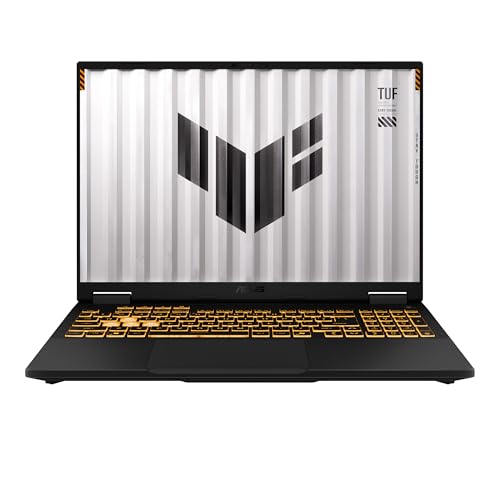
- Mid-Range
- RTX 5050 Laptop
- Core i5-13450HX
- 16 GB RAM
This page contains affiliate links. As an Amazon Associate we earn from qualifying purchases.
X-Plane 12 Performance Score
- GPU Performance60% 37
- GPU VRAM20% 40
- CPU Performance10% 75
- System RAM10% 50
GPU VRAM (8 GB) is below the X-Plane 12 ideal of 12 GB — a meaningful bottleneck in dense environments. Combined score: 42.7. How we score
Verdict for X-Plane 12
The ASUS TUF F16 (RTX 5050) suits 1080p flying, where the RTX 5050 Laptop GPU and its 115 W graphics power handle X-Plane 12's lighting and weather. The 8 GB of graphics memory is the ceiling, so a 1440p screen or VR calls for a step up in price.
Updated October 2026
Pros & Cons for X-Plane 12
Strengths
- The RTX 5050 Laptop GPU, running up to 115 W, carries X-Plane 12's physically-based lighting and its GPU-hungry weather at the laptop's own 1920 × 1200 screen, so a rainy approach into a detailed airport is well within what it was built for at 1080p High.
- The 16-inch 1920 × 1200 panel at 165 Hz gives more vertical space than the 16:9 screens most machines at this price pair with an RTX 5050 — useful when you want the instrument panel and the runway visible together on a visual circuit.
- X-Plane 12 leans harder on the graphics chip than on the processor, so pairing the RTX 5050 Laptop GPU with an HX-class Core i5-13450HX puts the spend where this sim uses it, and at 4.85 lb you can carry the whole setup to a hotel room and still fly a full airliner leg.
Trade-offs
- 8 GB of graphics memory is the limit here: it holds up at 1080p, but plug in a larger 1440p display or try a headset and dense airport scenery with high texture resolution will force you to dial settings back — treat this as a 1080p laptop, not a VR one.
- 16 GB of RAM only meets X-Plane 12's recommended level and the 512 GB SSD fills quickly once the sim, global scenery and payware airports are installed; a step up in price typically brings 32 GB of RAM and a 1 TB drive, with 12 GB of graphics memory further up, and this listing doesn't say whether the memory can be upgraded, so check before you buy.
Full Specifications
- Graphics chip
- NVIDIA GeForce RTX 5050 Laptop GPU
- Graphics rating
- 37 of 100 (laptop scale)
- Graphics memory
- 8 GB
- Graphics power
- 115 W max
- Processor
- Intel Core i5-13450HX
- Memory
- 16 GB
- Storage
- 512 GB SSD
- Screen
- 16" 1920 x 1200
- Refresh rate
- 165 Hz
- Weight
- 4.85 lb
- Released
- 2025
Frequently Asked Questions
Is this good for X-Plane 12?
Yes, for 1080p flying — it scores 42.7/100 for X-Plane 12, which puts it in 1080p territory rather than 1440p or VR. It is happiest on its own 16-inch 1920 × 1200 screen, where the RTX 5050 Laptop GPU handles X-Plane 12's weather and lighting around a busy airport. Push it onto a bigger 1440p display or a headset and the 8 GB of graphics memory shows its limits, so lower texture resolution and render scaling first.
Is it worth the price for X-Plane 12?
For the money you get an HX-class Core i5-13450HX and a 165 Hz 1920 × 1200 screen, which is more screen than many machines built around an RTX 5050 offer — the skimps are the 512 GB SSD and the 8 GB of graphics memory. If you want X-Plane 12 at 1440p or in a headset, a laptop with 12 GB of graphics memory and 32 GB of RAM is the one to save for.
Is X-Plane 12 more CPU or GPU demanding?
X-Plane 12 leans on both, but it scales more directly with the graphics chip than MSFS does, because its lighting and weather are drawn by the GPU while the flight physics keep the HX-class Core i5-13450HX busy without dominating. Our laptop score is 60% graphics chip, 20% graphics memory, 10% processor class and 10% RAM, so the RTX 5050 Laptop GPU decides most of how this one feels in the air.
What graphics settings should I use?
Start at the native 1920 × 1200 with High settings and DLSS on Quality; with 8 GB of graphics memory, texture resolution is the first slider to lower when scenery gets heavy. If the graphics chip is the limit, cut render scaling or move DLSS to Balanced; if the processor is the hold-up at a busy field, reduce AI traffic density and terrain detail.