VR Headset · Microsoft Flight Simulator 2024
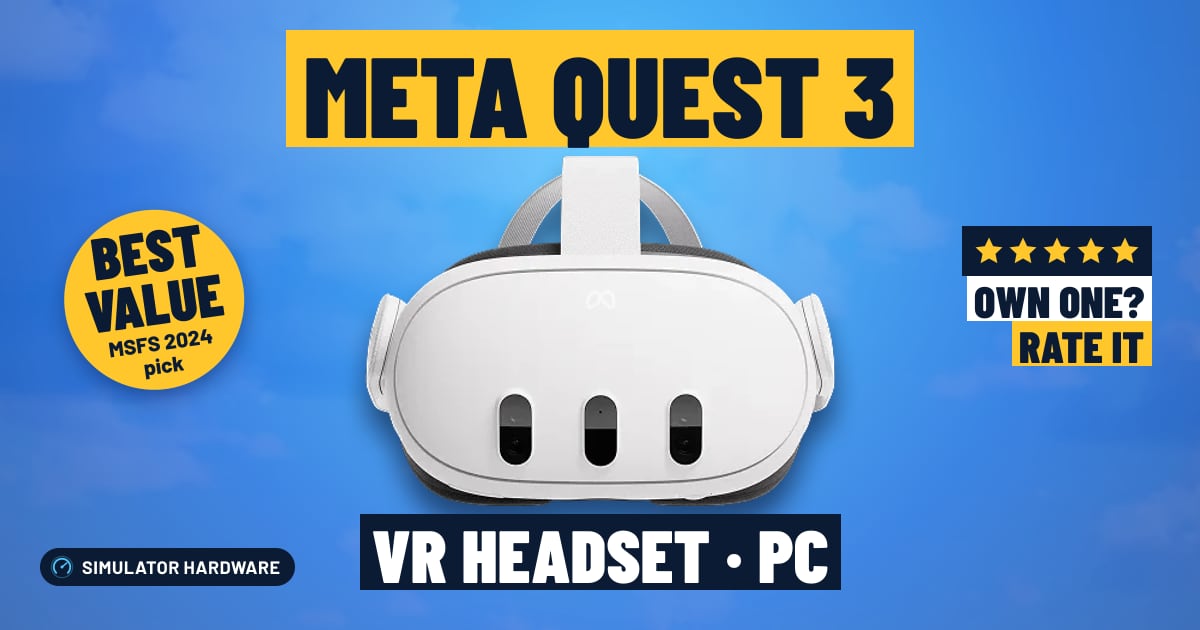
Meta Quest 3

- Mid-Range
- 25 pixels per degree
- Cable or Wi-Fi
- PC
MSFS Performance Score
- Sharpness35% 44
- Lenses20% 100
- Refresh Rate15% 100
- No-Cable Freedom15% 100
- Platforms15% 50
Biggest contributor: lenses (20% of the score), rated 100/100. How we score
Verdict for MSFS
The Meta Quest 3 suits PC simmers who want clear cockpit text right out to the edge of the view, thanks to its pancake lenses. At 25 pixels per degree the smallest labels are softer than on a sharper headset, and PC VR needs either a USB-C cable or a Wi-Fi 6E router.
Updated October 2026
Pros & Cons for MSFS
Strengths
- Pancake lenses (the type that stays sharp almost to the rim of the view) mean the instrument panel reads clearly when you glance left to the side window on base leg, not just dead ahead; at 25 pixels per degree the altimeter and heading bug are easy to read in the flare.
- It reaches the PC two ways: a USB-C Link cable (a cable that carries the sim's picture from the PC to the headset) or Wi-Fi with a Wi-Fi 6E router in the same room, so a long scenic cruise can be flown with nothing tugging your head when you look over your shoulder; the screen runs up to 120 Hz, which keeps the view steady as you pan across the field on downwind.
- A good fit if you fly MSFS on a Windows PC with an RTX 3080, 4070 or 5070 class graphics card or better, and you want your first VR cockpit without a tethered-only setup.
Trade-offs
- For PC VR you must supply a good USB-C Link cable or a Wi-Fi 6E router near the desk; on a weak home network the picture can break up at the worst moment, like turning final into a busy airport.
- A sharper headset with more pixels per degree would let you read fine GPS labels and distant taxiway signs without leaning in, though that extra clarity asks more of your graphics card in dense city scenery.
Full Specifications
- Sharpness
- 25 pixels per degree
- Lenses
- Pancake (sharp to the edge)
- Refresh rate
- Up to 120 Hz
- Type
- Standalone; plays PC VR by USB-C cable or Wi-Fi
- Works on
- PC
- Released
- 2023
Frequently Asked Questions
Is this a good VR Headset for MSFS?
Yes, for PC simmers it is a solid way into VR flying, and it scores 72.9/100 for MSFS. It shines in the clarity across the whole lens, so the panel stays readable when you look sideways at the side windows on a circuit, and the 120 Hz screen keeps panning smooth. It shows its limits on the smallest text, where 25 pixels per degree is softer than a sharper headset.
Is it worth the price for MSFS?
For the money you get pancake lens clarity and the choice of flying by cable or over Wi-Fi, which is a lot of headset for a first VR cockpit. The next step up in price mainly buys more pixels per degree for crisper fine print, and that asks more of your graphics card in return.
Does it work on Xbox or PS5?
For MSFS it works with a Windows PC: the PC runs the sim and sends the picture to the headset over a USB-C Link cable or over Wi-Fi, using OpenXR (the standard that lets the sim talk to any current PC headset). It does not work with consoles for MSFS, and Xbox has no VR at all.
What else do I need with it?
On the PC side an RTX 2070 to 3070 or 4060 is a starting point, an RTX 3080, 4070 or 5070 (RX 6800 XT, 9070) is comfortable, and an RTX 4070 Ti, 4080, 4090 or 5070 Ti and up (RX 7900 XT, 9070 XT) is best, with 32GB of memory. Budget for one practical extra too: a good USB-C Link cable, or a Wi-Fi 6E router sitting near your desk if you want to fly without a cord.
How should I configure this in MSFS?
Set the headset's PC app as your OpenXR runtime (the setting that tells MSFS which headset to use), then press Ctrl + Tab in the sim to drop into the cockpit. Start with lower graphics settings and raise them one at a time, and use the Link cable rather than Wi-Fi if you want the steadiest picture while you find your settings.