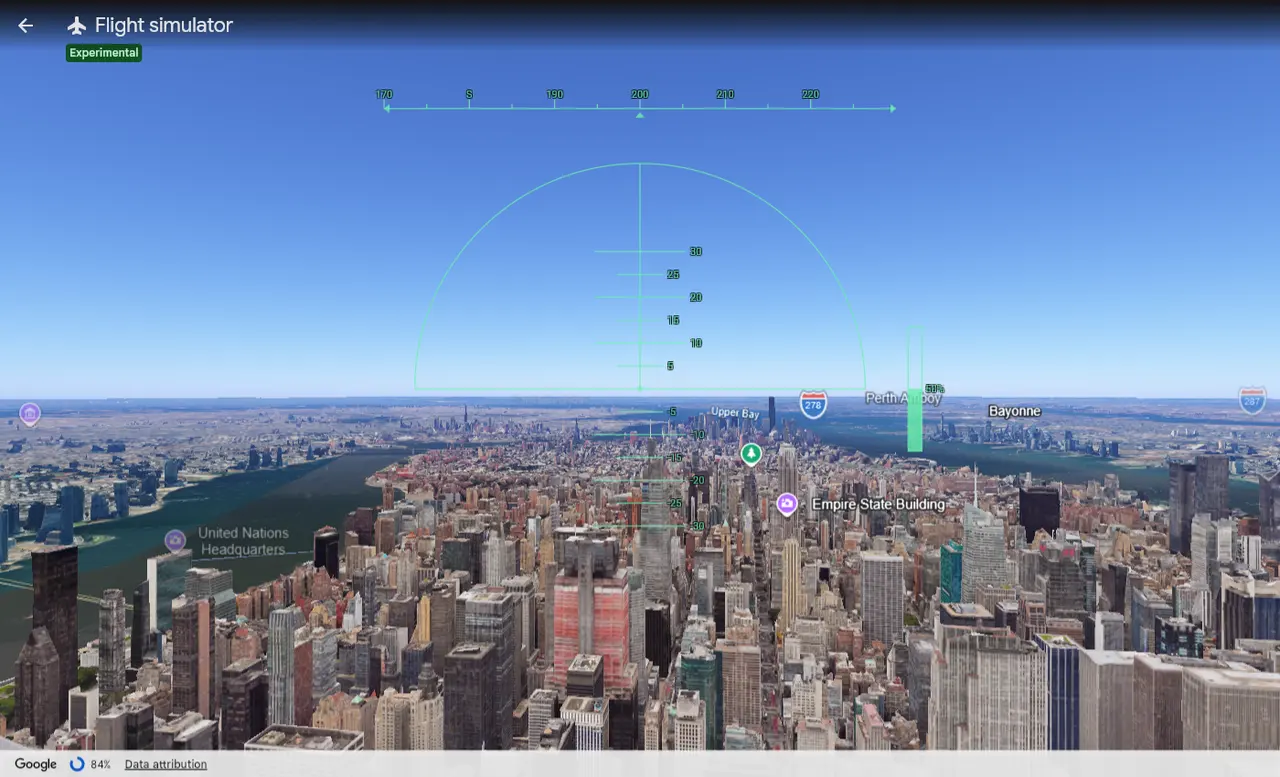
Google Earth has a free flight simulator, and since June 2026 it runs in your web browser. On a computer, open earth.google.com, go to where you want to start, then click Tools → Flight simulator. Page Up adds power; the arrow keys steer (↓ climbs, ↑ dives). For the full version, with two planes, runways and joysticks, press Ctrl + Alt + A in Google Earth Pro (⌘ + Option + A on a Mac). It doesn't work on phones.
Web or Earth Pro: which version should you use?
There are now two Google Earth flight simulators. They look alike, but they're not the same:
| Google Earth on the web | Google Earth Pro | |
|---|---|---|
| Runs on | A browser on any computer, nothing to install | A free app for Windows, Mac and Linux |
| Aircraft | One | SR22 (small plane) or F-16 (fighter jet) |
| You start | In the air, wherever the camera is | In the air, or on an airport runway |
| Controls | Power, pitch and roll | Plus rudder, trim, flaps, gear, brakes and pause |
| Joystick | Keyboard and mouse only | Yes |
| Landings | No: it's for sightseeing | Yes |
Our take: use the web version for a quick, fun flight over somewhere you know. It takes ten seconds to start and works on almost any computer, including a Chromebook. Use Earth Pro if you want to take off from a real runway, fly with a joystick, or try to land. Google labels the web version "experimental", so it may change.
How to open the flight simulator on the web
- On a Windows PC, Mac or Chromebook, open earth.google.com in your browser. You don't need to sign in.
- If a welcome screen shows, click Explore Earth.
- Search for a place in the search box, or drag the globe there.
- Set up your takeoff. Zoom in until the camera height at the bottom right of the screen is a few hundred meters. Then tilt the view so you're looking at the horizon: hold Shift and drag the mouse, or click the 3D button at the bottom right.
- Open the Tools menu at the top and click Flight simulator.
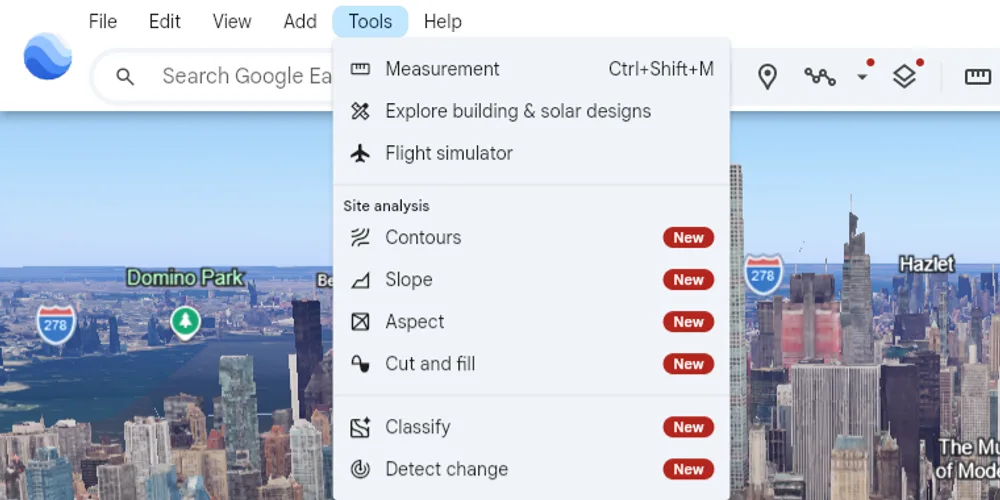
You start exactly where the camera was, facing the same way, flying level at 50% power. A green head-up display appears over the view, and an "Experimental" tag sits under the title. To stop, click the back arrow at the top left, or press Esc.
If you see a flat cartoon map instead of photos and 3D buildings, switch the map style from Map to Satellite with the map style button at the bottom left.
How to open it in Google Earth Pro
- Download Google Earth Pro from Google's Earth versions page and install it. It's free. It runs on Windows 7 or newer, macOS and Linux, with 2GB of RAM minimum (4GB recommended).
- Open Earth Pro, then click Tools → Enter Flight Simulator, or press Ctrl + Alt + A (⌘ + Option + A on a Mac).
- Choose your aircraft. The SR22 is a slow, friendly propeller plane: start here. The F-16 is a fighter jet that can climb straight up and keep going. It's thrilling, and hard to control.
- Choose where to start. Current View puts you in the air wherever the camera is. Airport puts you on a runway, ready for takeoff: pick one from the list.
- Joystick? If one is plugged in, tick Joystick enabled. Otherwise you fly with the keyboard and mouse.
- Click Start flight.
To change the aircraft, start or controller later, leave the simulator first (Ctrl + Alt + A again, or Esc), then open it again.
Earth Pro downloads end on June 25, 2027. Google is moving Earth's features to the web version. If you already have Earth Pro, it keeps working after that date, so download it before then if you want the full flight simulator. On an Apple silicon Mac it runs through Apple's Rosetta translation, which macOS installs when asked.
Google Earth flight simulator controls
Pick your version and keyboard. Laptops without a Page Up key have their own keys for it, and those are on the sheet too.
Flight simulator controls cheat sheet
Start and stop
- Open the flight simulatorThere is no shortcut on the web.
- Tools menu → Flight simulator
- Leave the flight simulatorOr click the back arrow at the top left.
- Esc
- Fly with the mouseClick once in the middle of the view; click again to go back to the keys.
- Click in the view
- Restart after a crashYou come back at a safe height.
- Click “You crashed! Restart?”
Power
- More powerOr click the throttle bar on the right.
- Page Up
- Less power
- Page Down
Steer
- Nose down (dive)Like pushing a stick forward.
- ↑
- Nose up (climb)Like pulling a stick back.
- ↓
- Bank left
- ←
- Bank right
- →
Start and stop
- Open the flight simulatorThere is no shortcut on the web.
- Tools menu → Flight simulator
- Leave the flight simulatorOr click the back arrow at the top left.
- Esc
- Fly with the mouseClick once in the middle of the view; click again to go back to the keys.
- Click in the view
- Restart after a crashYou come back at a safe height.
- Click “You crashed! Restart?”
Power
- More powerOr click the throttle bar on the right.
- Page Up orfn+↑
- Less power
- Page Down orfn+↓
Steer
- Nose down (dive)Like pushing a stick forward.
- ↑
- Nose up (climb)Like pulling a stick back.
- ↓
- Bank left
- ←
- Bank right
- →
Start and stop
- Open the flight simulatorThere is no shortcut on the web.
- Tools menu → Flight simulator
- Leave the flight simulatorOr click the back arrow at the top left.
- Esc
- Fly with the mouseClick once in the middle of the view; click again to go back to the keys.
- Click in the view
- Restart after a crashYou come back at a safe height.
- Click “You crashed! Restart?”
Power
- More powerOr click the throttle bar on the right.
- Search+↑
- Less power
- Search+↓
Steer
- Nose down (dive)Like pushing a stick forward.
- ↑
- Nose up (climb)Like pulling a stick back.
- ↓
- Bank left
- ←
- Bank right
- →
Start and stop
- Open the flight simulatorOr Tools menu → Enter Flight Simulator.
- Ctrl+Alt+A
- Leave the flight simulatorOr click Exit Flight Simulator at the top right.
- Ctrl+Alt+A orEsc
- Pause and resume
- Space
- Fly with the mouseClick once in the middle of the view; click again to go back to the keys.
- Click in the view
- Show the controls helpWindows and Linux only.
- Ctrl+H
Power
- More power
- Page Up
- Less power
- Page Down
Steer
- Nose down (dive)Like pushing a stick forward.
- ↑
- Nose up (climb)Like pulling a stick back.
- ↓
- Bank left
- ←
- Bank right
- →
- Rudder left (yaw)
- Shift+← orInsert
- Rudder right (yaw)
- Shift+→ orEnter (number pad)
- Center the ailerons and rudder
- C or5
- Trim nose downTrim holds the nose where you want it, so you can let go.
- Shift+↑ orHome
- Trim nose up
- Shift+↓ orEnd
Flaps, gear and brakes
- Flaps down (more)Flaps let you fly slower, for takeoff and landing.
- F or]
- Flaps up (less)
- Shift+F or[
- Landing gear up or downF-16 only: the SR22’s wheels are fixed.
- G
- Left wheel brakeTap it to steer left on the ground.
- ,
- Right wheel brakeTap both together to stop.
- .
Look around and display
- Look aroundAlt turns your view slowly, Ctrl quickly.
- Alt+arrow keys orCtrl+arrow keys
- Hide or show the HUD
- H
Start and stop
- Open the flight simulatorOr Tools menu → Enter Flight Simulator.
- ⌘+Option+A
- Leave the flight simulatorOr click Exit Flight Simulator at the top right.
- ⌘+Option+A orEsc
- Pause and resume
- Space
- Fly with the mouseClick once in the middle of the view; click again to go back to the keys.
- Click in the view
Power
- More power
- Page Up orfn+↑
- Less power
- Page Down orfn+↓
Steer
- Nose down (dive)Like pushing a stick forward.
- ↑
- Nose up (climb)Like pulling a stick back.
- ↓
- Bank left
- ←
- Bank right
- →
- Rudder left (yaw)
- Shift+←
- Rudder right (yaw)
- Shift+→ orEnter (number pad)
- Center the ailerons and rudder
- C or5
- Trim nose downTrim holds the nose where you want it, so you can let go.
- Shift+↑ orHome orfn+←
- Trim nose up
- Shift+↓ orEnd orfn+→
Flaps, gear and brakes
- Flaps down (more)Flaps let you fly slower, for takeoff and landing.
- F or]
- Flaps up (less)
- Shift+F or[
- Landing gear up or downF-16 only: the SR22’s wheels are fixed.
- G
- Left wheel brakeTap it to steer left on the ground.
- ,
- Right wheel brakeTap both together to stop.
- .
Look around and display
- Look aroundAlt turns your view slowly, Ctrl quickly.
- Alt+arrow keys orCtrl+arrow keys
- Hide or show the HUD
- H
Google Earth Pro doesn’t run on ChromeOS itself, only through a Chromebook’s Linux mode. The easy way is the web version: pick “Google Earth on the web” above.
The one thing that trips up everyone: up is down. The arrow keys work like a pilot's stick. Pushing a stick forward points the nose at the ground, so ↑ dives and ↓ climbs, in both versions. Google's web help table lists them the other way round, but when we flew the web version, ↑ pushed the nose down every time.
Use small taps, not long presses. The plane keeps turning after you let go of a key. Tap, wait a second, tap again.
New to flying? A plane moves three ways, plus power:
-
PitchNose up or down
Pull the stick or yoke back to climb, push it forward to descend.
-
RollBank the wings
Tilt the stick, or turn the yoke like a steering wheel.
-
YawNose left or right
Push the rudder pedals, or twist the stick if you don't have pedals.
-
PowerSpeed and climb
Push the throttle forward for more power, pull it back for less.
The web version gives you pitch, roll and power. Earth Pro adds yaw, through the rudder keys or a twisting joystick, which steers you on the runway.
How to read the head-up display (HUD)
The green lines over the view are your instruments. In the web version there are just five things to read:
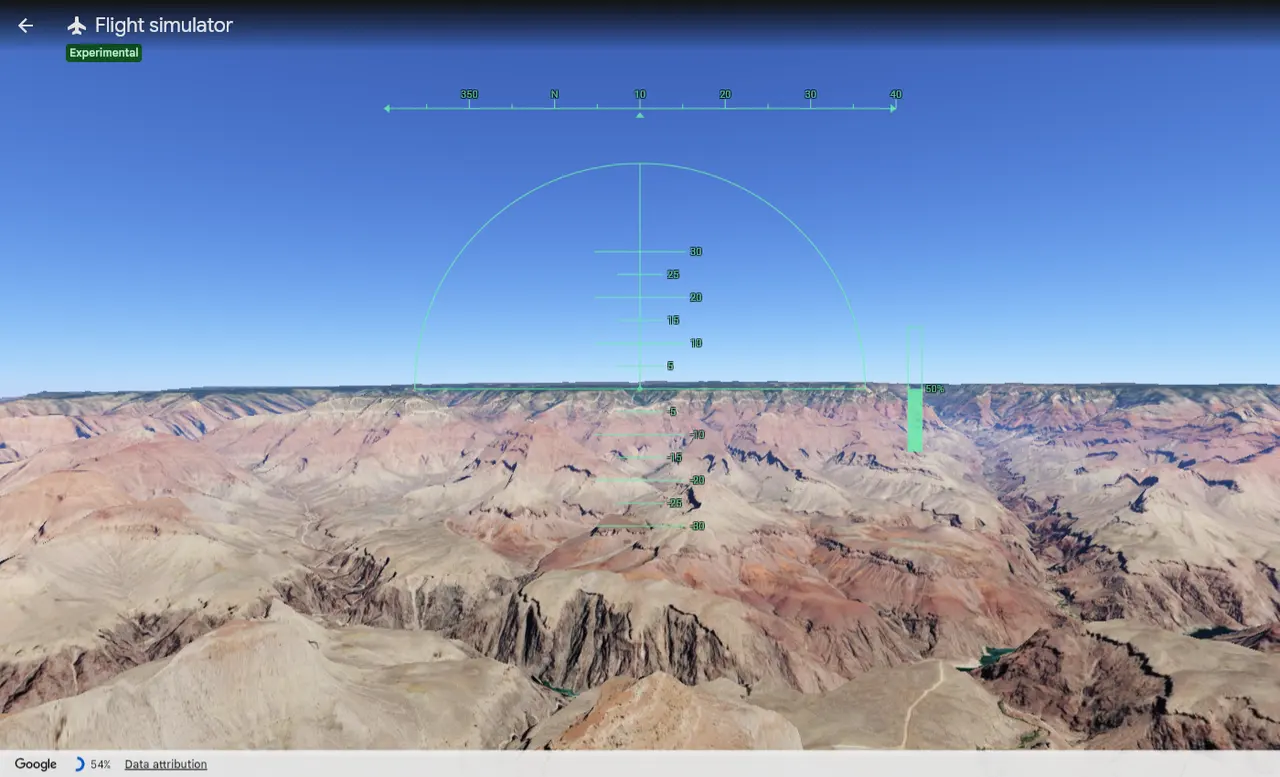
- Exit. The back arrow ends the flight (so does Esc).
- Heading. Which way you’re flying, in degrees: N is north, 10 is a little east of north, 90 would be east.
- Pitch ladder. How far the nose points above (+) or below (−) the horizon, in degrees. The small circle in the middle is your nose.
- Horizon bar. This long line tilts when you bank, so you can see how steep your turn is.
- Throttle. Engine power, 0 to 100%. Every flight starts at 50%.
There's no speedometer or altimeter on the web, so judge your height by the ground. If buildings fill the view, add power and climb.
Earth Pro's HUD shows much more: speed in knots, altitude in feet above sea level, vertical speed (how fast you're climbing or descending, in feet per minute), heading, bank and pitch angles, throttle, how far the rudder, ailerons and elevator are moved, and the flaps and gear. Press H to hide it for a clean screenshot.
Your first flight, step by step
On the web: a sightseeing flight
- Start low over a city with 3D buildings, looking along a river or a main road. It gives you a line to follow.
- Climb a little first. Tap ↓ until the small circle sits just above the horizon bar, then let go.
- Turn with short taps of ← or →. Watch the horizon bar tilt. To roll level again, tap the other way.
- Speed up or slow down with Page Up and Page Down, or click the throttle bar on the right.
- Crashed? It happens to everyone. Click You crashed! Restart? and you're back in the air at a safe height.
The web version has no wheels, flaps or brakes in its controls, so landings aren't part of it. It's a sightseeing flight.
In Earth Pro: take off, fly a circuit and land
Pick the SR22 and an Airport start, so you begin on a runway.
- Full power. Hold Page Up. The plane starts rolling down the runway.
- Lift off. Once you're rolling fast, press ↓ gently, or move the mouse or stick back a little. The nose comes up and the plane flies off the ground.
- Climb gently. Keep the nose a few degrees above the horizon on the HUD. Too steep and you lose speed.
- Level off and trim. When you're high enough, lower the nose to the horizon, ease the power back a little and center your controls. Trim (Home / End, or Shift + ↑ / ↓) holds the nose there so you don't have to.
- Turn back to the airport. Bank gently with ← or →, keeping the HUD's bank angle around 15 to 20 degrees. Turn left four times and you've flown a square "circuit" back to the runway.
- Slow down for landing. Line up with the runway from far out. Press Page Down to reduce power, then F a few times for flaps, which let you fly slower. In the F-16, press G to lower the landing gear.
- Touch down. Descend gently toward the start of the runway, raise the nose just a little right before the wheels touch, and pull the power right back.
- Brake. Tap , and . together to stop. On their own they brake one wheel, which steers you left or right.
Things getting busy? Press Spacebar to pause, think, and press it again to carry on.
Where to fly: 8 places worth the trip
The best flights are over places with 3D photo scenery, where Google has modeled every building and cliff. Type the name in the search box, set up a low, tilted view, and start the simulator.
- Manhattan, New York. Start over Central Park and fly south between the towers to the Statue of Liberty.
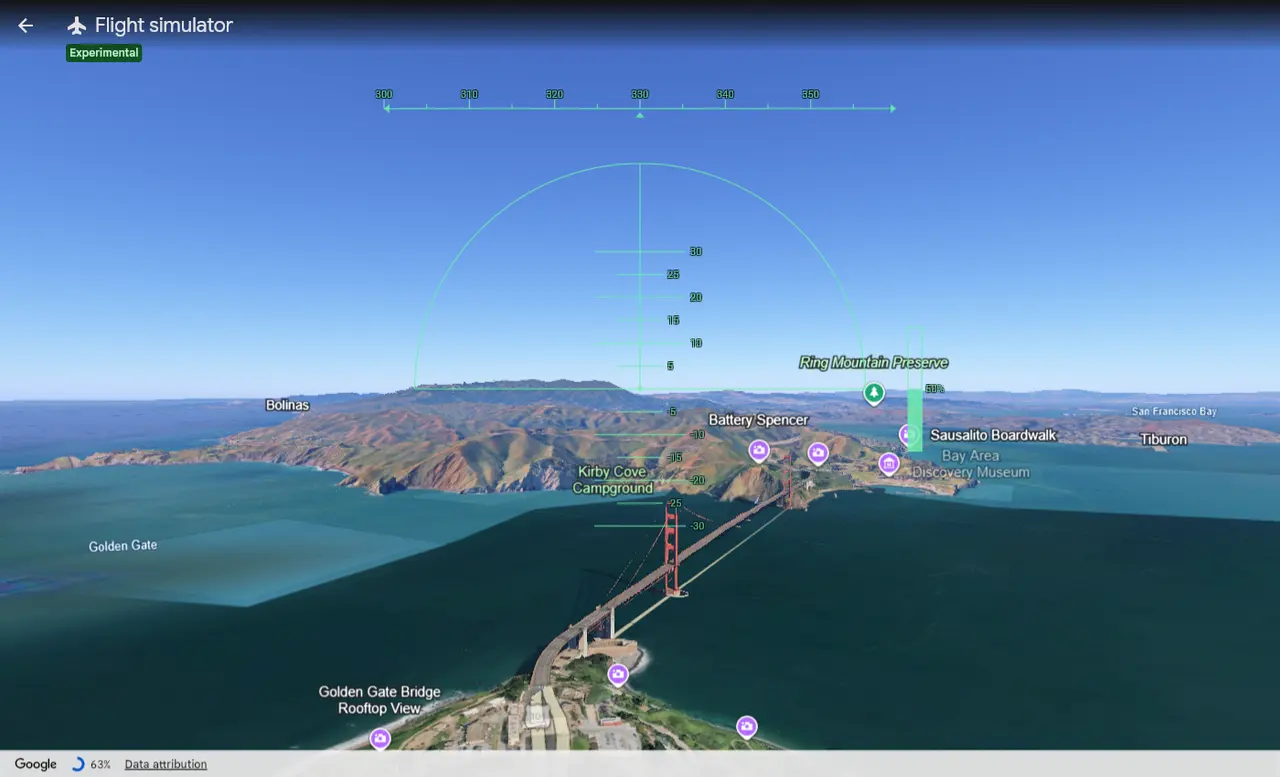
- Golden Gate Bridge, San Francisco. Start over the city and head north across the bridge to the Marin Headlands. Brave pilots fly under it.
- Grand Canyon, Arizona. Drop below the rim and follow the Colorado River.
- The Matterhorn, Switzerland. Circle the peak from Zermatt, then follow the valleys of the Alps.
- Rio de Janeiro, Brazil. Christ the Redeemer, Sugarloaf Mountain and Copacabana beach in one loop.
- Sydney Harbour, Australia. Over the Harbour Bridge and around the Opera House.
- Mount Everest, Nepal. Start high: the summit is about 8,849 m (29,032 ft) above sea level.
- Your own home. Everyone does it first, and it never gets old.
Can you use a joystick in Google Earth?
In Earth Pro, yes. Google's help lists keyboard and mouse only for the web version, so for a stick, use Earth Pro.
- Plug the joystick in before you open Earth Pro.
- On Windows, make sure Windows sees it: type joy.cpl in the Start menu, open it, pick your stick and check the axes move.
- Open the flight simulator (Ctrl + Alt + A) and tick Joystick enabled. Then start the flight.
- To take off: add full power (Page Up, or your stick's throttle), let the plane pick up speed down the runway, then pull the stick back gently to lift off. When you're level, center the stick.
If the plane turns or dives on its own, another controller is probably plugged in, like a gamepad or a second stick. Unplug the others and recalibrate the stick in joy.cpl. Keep the keyboard close: flaps, gear and brakes still live on the keys.
A stick gives you smooth, gradual control that taps on a key can't match. It also works in every real flight sim, so it's not wasted when you move on. Any of these appears in Windows as a standard game controller:
Joysticks for Google Earth Pro: starter picks
| Part | Our pick | Price |
|---|---|---|
| Best budget stick (PC) Precise magnetic sensors, twist the grip for rudder, and a power slider on the base. | Thrustmaster T.16000M FCS Our pick. Its magnetic sensors don't wear the way cheap ones do, and it flips for left-handed flying. | Check price |
| Simple all-in-one stick (PC) A stick with the throttle lever and twist rudder built in. | Thrustmaster T.Flight Stick X Basic, but everything is in one piece, so it's easy to set up on a small desk. | Check price |
| Stick + separate throttle (PC) A stick for one hand and a throttle for the other, like a real cockpit. | Thrustmaster T.Flight Hotas X An old design, but a low-cost way to fly with both hands. The throttle clips onto the stick or sits beside it. | Check price |

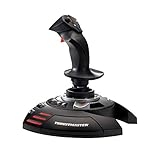

Links go to Amazon, where you'll see today's price. As an Amazon Associate we earn from qualifying purchases, at no cost to you.
All three are made for Windows PCs. Thrustmaster doesn't list Mac support for them. Want something for a full sim setup? Our guide to the best flight sticks for MSFS 2024 goes further.
Flight simulator not working? Try these fixes
- There's no "Flight simulator" in the Tools menu. You're probably on a phone, a tablet or the Google Earth app. It only works in a browser on a computer, or in Earth Pro.
- The keys do nothing. Click once inside the view so it has your keyboard, then try again. (On the web, Google turns off the normal map shortcuts while you fly.)
- The plane dives straight into the ground. You're pressing ↑ to climb. Press ↓ instead.
- There's no Page Up key on your laptop. On a Mac it's fn + ↑, on a Chromebook Search + ↑. On a Windows laptop it's usually Fn plus an arrow key or a key marked PgUp. Or click the throttle bar.
- The world looks like a flat cartoon map. Switch the map style to Satellite (bottom left).
- Buildings look blurry or melted. The scenery streams in as you fly. Slow down with Page Down and give it a few seconds. A faster internet connection helps.
- The ground flickers near places like Death Valley. Google says this is a known issue below sea level.
- Earth Pro's shortcut doesn't open it. Use Tools → Enter Flight Simulator instead. Some keyboard layouts use Ctrl + Alt for other characters.
- Earth Pro ignores your joystick. Leave the simulator, plug the stick in, restart Earth Pro, and tick Joystick enabled before you start the flight.
Ready for a real flight simulator?
Google Earth is a lovely way to fly over the world for free. But it's a sightseeing toy, not a flight simulator: one plane on the web, two in Earth Pro, simple physics, no weather, no cockpit, no air traffic. If it got you hooked, here's where to go next:
| If you want | Try | Why |
|---|---|---|
| Free, still in a browser | GeoFS | About 30 aircraft, the whole world from satellite photos, other players and real live air traffic. Runs on phones too. |
| The real world in far more detail | Microsoft Flight Simulator 2024 | The whole planet in 3D, real cockpits, live weather, and lessons that start from zero. On PC, Xbox and PS5. |
| The most realistic flying, or a Mac | X-Plane 12 | The most realistic flight physics, and it runs on a Mac. There's a free demo. |
Not sure which suits you? Our guide to the best flight simulators has a four-question picker. And when you're ready to fly for real at home, start with what you need for a home cockpit. MSFS 2024 needs a proper gaming PC: here are the best PCs for it.
How we checked this guide
The controls and steps come from Google's own help pages for both versions. We also flew the web version ourselves on October 8, 2026, in Chrome on Windows, to check what Google's pages don't say. We couldn't test Earth Pro's joystick support ourselves, so that advice is Google's and the stick makers'. We checked that every joystick above was in stock on Amazon on the same day.