Throttle Quadrant · X-Plane 12
Honeycomb Bravo

- Mid-Range
- 6 levers
- PC and Xbox
X-Plane 12 Performance Score
- Throttle & Rudder35% 100
- Sensors20% 40
- Detent Feel15% 40
- Platforms15% 100
- Build Quality15% 50
Biggest contributor: throttle and rudder (35% of the score), rated 100/100. How we score
Verdict for X-Plane 12
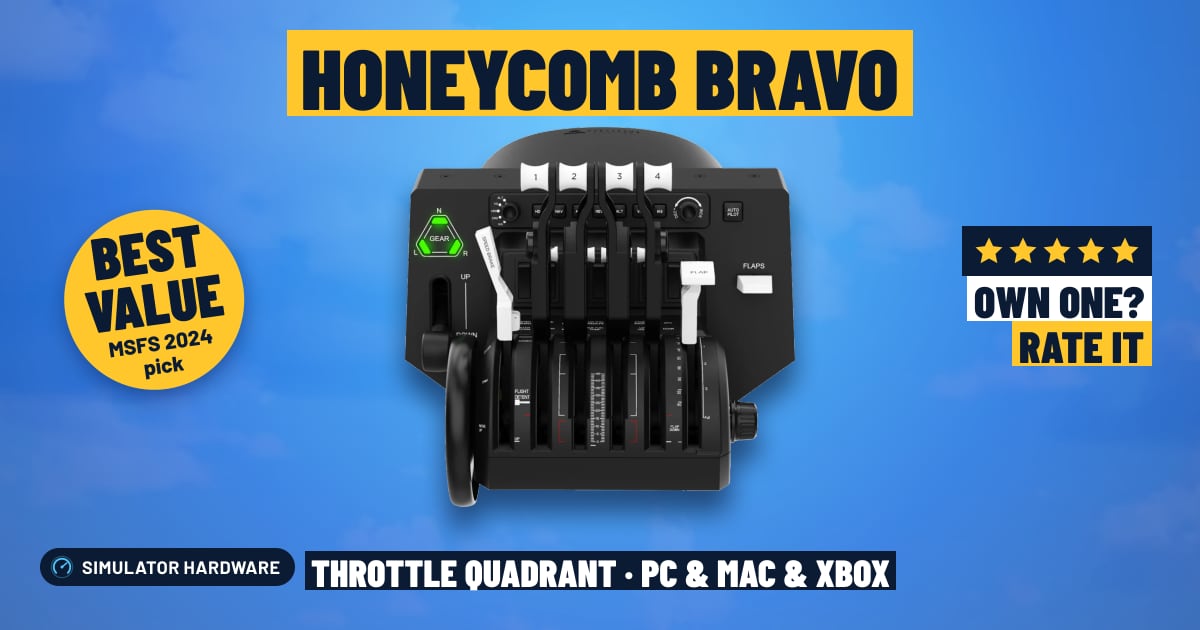
The Honeycomb Bravo suits X-Plane 12 pilots who fly everything from a Cessna to a four-engine airliner, with six levers you can assign to throttle, prop or mixture. Honeycomb doesn't state the sensor type, so if the levers get jittery with age, a calibration or a small dead zone fixes it.
Updated October 2026
Pros & Cons for X-Plane 12
Strengths
- Six levers, and X-Plane 12 lets you assign each one its own axis, so in a piston twin you push both throttles, set both props and lean both mixtures by hand instead of tapping a keyboard key or dragging a slider.
- The autopilot controls, trim wheel, gear lever and flap lever live under your hand, so you can dial a new altitude and arm a mode in the climb, drop the gear on downwind and run the flaps on final without reaching for the mouse — and the annunciator panel's warning lights sit in your eyeline when a caution fires.
- Swappable lever handles mean the same quadrant covers a single-engine trainer one evening and a four-engine airliner the next, and it pairs with a yoke or a stick to finish a desk where power is still set with a key.
Trade-offs
- Honeycomb doesn't say the levers use contactless (Hall-effect) sensors, the kind that read lever position without parts rubbing together, so after a lot of hours a lever can twitch and wander your cruise power; a re-calibration or a small dead zone in X-Plane 12 usually settles it.
- The maker doesn't mention detents — the notches you can feel at a set lever position — so don't count on a notch for climb power after takeoff; you set power by the gauge, and the next step up in price is where felt stops and contactless sensors show up.
Full Specifications
- Type
- Configurable for any aircraft
- Levers
- 6
- Detents
- Not stated
- Extra controls
- autopilot, trim wheel, gear lever, flap lever, annunciator panel
- Sensors
- Not stated by the maker
- Works on
- PC, Mac, Xbox
- On Xbox
- Plugs into Honeycomb's Xbox Hub (with the Alpha XPC)
- Released
- 2020
Frequently Asked Questions
Is this a good Throttle Quadrant for X-Plane 12?
Yes — it scores 71.5/100 for X-Plane 12 and suits simmers who jump between singles, twins and airliners rather than flying one aircraft. It shines because X-Plane lets you map each of the six levers to throttle, prop, mixture, flaps or speed brake with its own response curve, and the autopilot, trim, gear and flap controls cover most of what you touch between takeoff and the flare. It shows limits where the maker stays quiet: no stated detents to feel for a power setting, and no contactless sensor claim, so plan on the odd calibration.
Is it worth the price for X-Plane 12?
For the money you're buying breadth rather than one refinement — six assignable levers plus autopilot, trim wheel, gear, flaps and warning lights in one unit, instead of a few axes on their own. Spend less and you get a plain lever block you still have to pair with a separate autopilot; the next step up in price is where contactless sensors and felt detents start appearing.
What does it need to work?
For X-Plane 12 it plugs into a Windows PC or a Mac over USB, which is all the sim needs since X-Plane 12 doesn't run on Xbox or PS5. If you also fly on Xbox, the Bravo doesn't go straight into the console — it connects through Honeycomb's Xbox Hub alongside the Alpha XPC yoke.
What else do I need with it?
Pair it with a yoke for airliners and GA, or a stick if you fly fighters and warbirds, and add rudder pedals so you can hold the centerline in a crosswind landing instead of twisting an axis on the stick. Put the quadrant on the side of your throttle hand, usually to the right of a yoke, with the lever tops roughly level with the yoke shaft so your hand drops onto them during a go-around.
How should I configure this in X-Plane 12?
In X-Plane 12's controller setup, assign each lever to its axis — throttle, prop, mixture, flaps or speed brake — then load a twin and check that each engine's levers move on their own before you fly. After that, swap the lever handles to match the aircraft you fly most, map the autopilot buttons to the modes that aircraft actually uses, and add a response curve or a small dead zone near idle if a lever twitches.