VR Headset · Microsoft Flight Simulator 2024
Pimax Crystal Light VR Headset
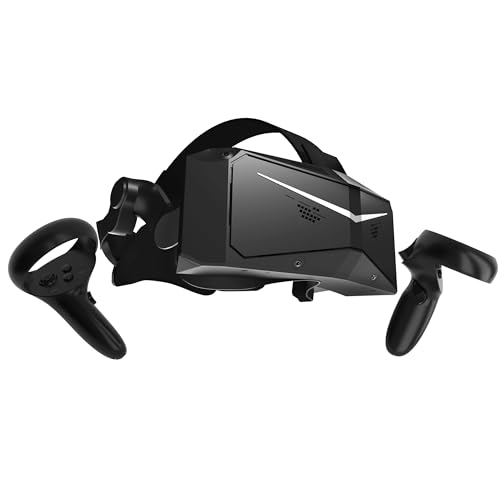
- High-End
- 35 pixels per degree
- DisplayPort cable
- PC
This page contains affiliate links. As an Amazon Associate we earn from qualifying purchases.
MSFS Performance Score
- Sharpness35% 61
- Lenses20% 100
- Refresh Rate15% 100
- No-Cable Freedom15% 50
- Platforms15% 50
Biggest contributor: sharpness (35% of the score), rated 61/100. How we score
Verdict for MSFS
The Pimax Crystal Light suits simmers who want cockpit text they can read at a glance: at 35 pixels per degree the radio stack stays legible on final. The trade-off is the DisplayPort cable to the PC and a graphics card strong enough to feed it.
Updated October 2026
Pros & Cons for MSFS
Strengths
- At 35 pixels per degree, as Pimax states, you can read the radio frequencies and the autopilot altitude without leaning toward the panel on an instrument approach.
- Glass aspheric lenses stay sharp almost to the edge of the view, so when you look over your shoulder on the turn to base the runway doesn't smear off to one side, and the screen runs at up to 120 Hz for steady motion as you pan across the panel.
- It fits the simmer who already has a strong gaming PC and flies at a desk: the picture travels down a DisplayPort cable (the same video cable a monitor uses) uncompressed, so distant scenery and thin runway markings arrive without compression fuzz.
Trade-offs
- It is always tethered: a DisplayPort video cable plus USB runs from your graphics card to your head, so you feel the cable every time you twist around to spot traffic on downwind, and that card has to work hard to fill 35 pixels per degree.
- There is no playing without the cable, so you can't sit back in an armchair or take it anywhere, and it is a Windows PC headset only, with nothing for PS5 or Xbox; the next step up in price buys you finer text again.
Full Specifications
- Sharpness
- 35 pixels per degree
- Lenses
- Glass aspheric (sharp to the edge)
- Refresh rate
- Up to 120 Hz
- Type
- PC headset, wired by DisplayPort and USB
- Works on
- PC
- Released
- 2024
Frequently Asked Questions
Is this a good VR Headset for MSFS?
Yes, if you fly MSFS on a capable Windows PC and want to stop squinting at the panel, which is why it scores 71.3/100 here. It shines in the cockpit: at 35 pixels per degree the radio stack, the trim wheel markings and the heading bug read clearly, and the glass aspheric lenses keep the side panels sharp when you turn your head. It shows its limits if your graphics card is modest, or if you wanted to fly untethered, because the DisplayPort cable is not optional.
Is it worth the price for MSFS?
For the money you are buying sharpness and glass lenses rather than freedom of movement, which is a fair trade if you fly airliners and spend your time reading instruments. Spend less and you get a lighter load on your graphics card and the option to fly without a cable; spend more and you get sharper text again, though your PC has to keep up either way.
Does it work on Xbox or PS5?
It plugs into a Windows PC: a DisplayPort video cable runs from your graphics card to the headset, with a USB cable alongside it, and MSFS talks to it through OpenXR, the standard that lets the sim drive any PC headset. It does not work on PS5 or PS5 Pro, and Xbox has no VR at all.
What else do I need with it?
Headset makers' guidance puts an RTX 2070 to 3070 or 4060 as a starting point, an RTX 3080, 4070 or 5070 (RX 6800 XT, 9070) for comfort, and an RTX 4070 Ti, 4080, 4090 or 5070 Ti and up (RX 7900 XT, 9070 XT) for the best experience, plus 32GB of memory; sharper headsets ask more of the card. Check you have a free DisplayPort output on the graphics card itself, and set up a yoke or stick and throttle you can find by feel, because you can't see your desk with the headset on.
How should I configure this in MSFS?
Install the Pimax PC app, set it as your OpenXR runtime so MSFS knows which headset to talk to, then start a flight and press Ctrl + Tab to switch into VR. Start with lower graphics settings and raise them one at a time while the picture stays smooth, and keep the DisplayPort cable routed over the back of your chair so it never tugs mid-approach.